Dashboard
After you log in, Vuoro drops you on the dashboard at /. Every role lands here — what you see depends on your permissions. The page opens with a greeting ("Welcome, name!").
Employee view
If you are an Employee, the dashboard is built around what you need to do today:
- Today's Shift — when your next scheduled shift starts and ends, whether it's an open shift you can pick up, or a "rest day" indicator if you are off today. Large clock-in / clock-out and break start/end buttons let you run your whole shift from this card.
- Upcoming Shifts — the next seven days of published shifts, with location and times.
- Quick Links — shortcuts to the Schedule, My Hours, and Leave pages.
If some of your clock-ins or clock-outs could not be saved (for example after a long time offline), a "Some clock events couldn't be saved" banner appears at the top with a Retry button. If retrying doesn't help, contact your supervisor so they can fix your hours.
Now and then, employees are asked "How would you rate Vuoro?" on a 1–5 scale. Answering takes one tap and is optional — Not now closes it. The question appears rarely and at most about once every three months.
Supervisor and above
If you are a Supervisor, Manager, or Company Admin, the dashboard shows an operational view with a row of stat cards. Clicking a card takes you to the underlying page. The counts only include the locations you are assigned to (Company Admins see all locations).
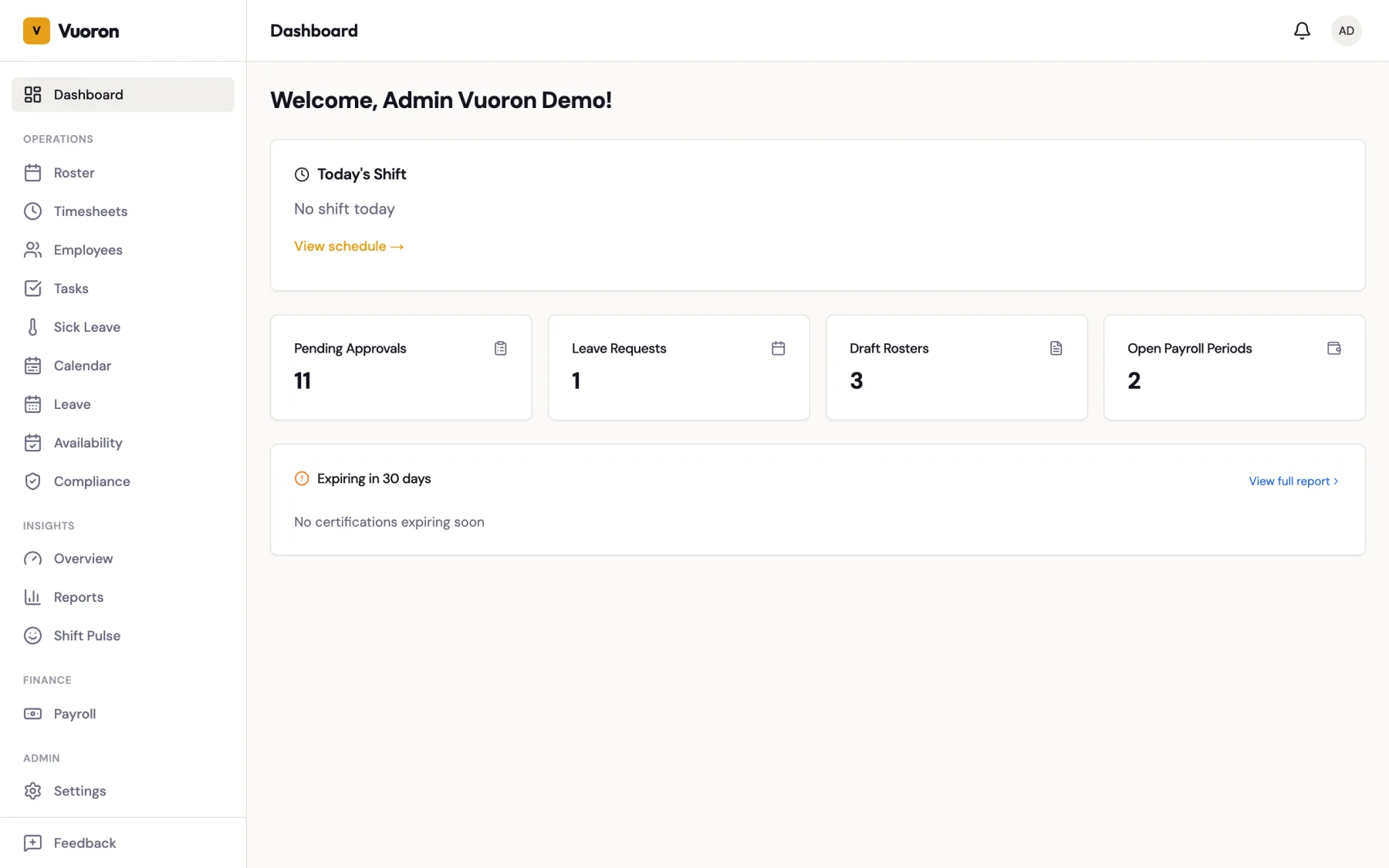
If you also have an employee record, the Today's Shift card with clock-in / clock-out and break buttons is shown above the stat cards, so you can clock your own shift from here too.
| Widget | What it counts | Clicks through to |
|---|---|---|
| Pending Approvals | Draft worklogs waiting to be approved. | Timesheets. |
| Leave Requests | Submitted leave requests waiting for a decision. | Leave. |
| Draft Rosters | Roster windows still in draft (not yet published). | Roster. |
| Open Payroll Periods | Payroll periods in open status. | Payroll. |
Role-gated widgets
- Open Payroll Periods is only shown to Manager and Company Admin. Supervisors do not see this card.
- Certifications expiring in 30 days is shown to Manager and Company Admin below the stat cards. It links to the certifications report — see Certifications.
- Employee widgets (Today's Shift, Upcoming Shifts, Quick Links) require the account to be linked to an employee record — logins without one (e.g. an admin or accountant invited with Invite user) do not see them.
Accounting view
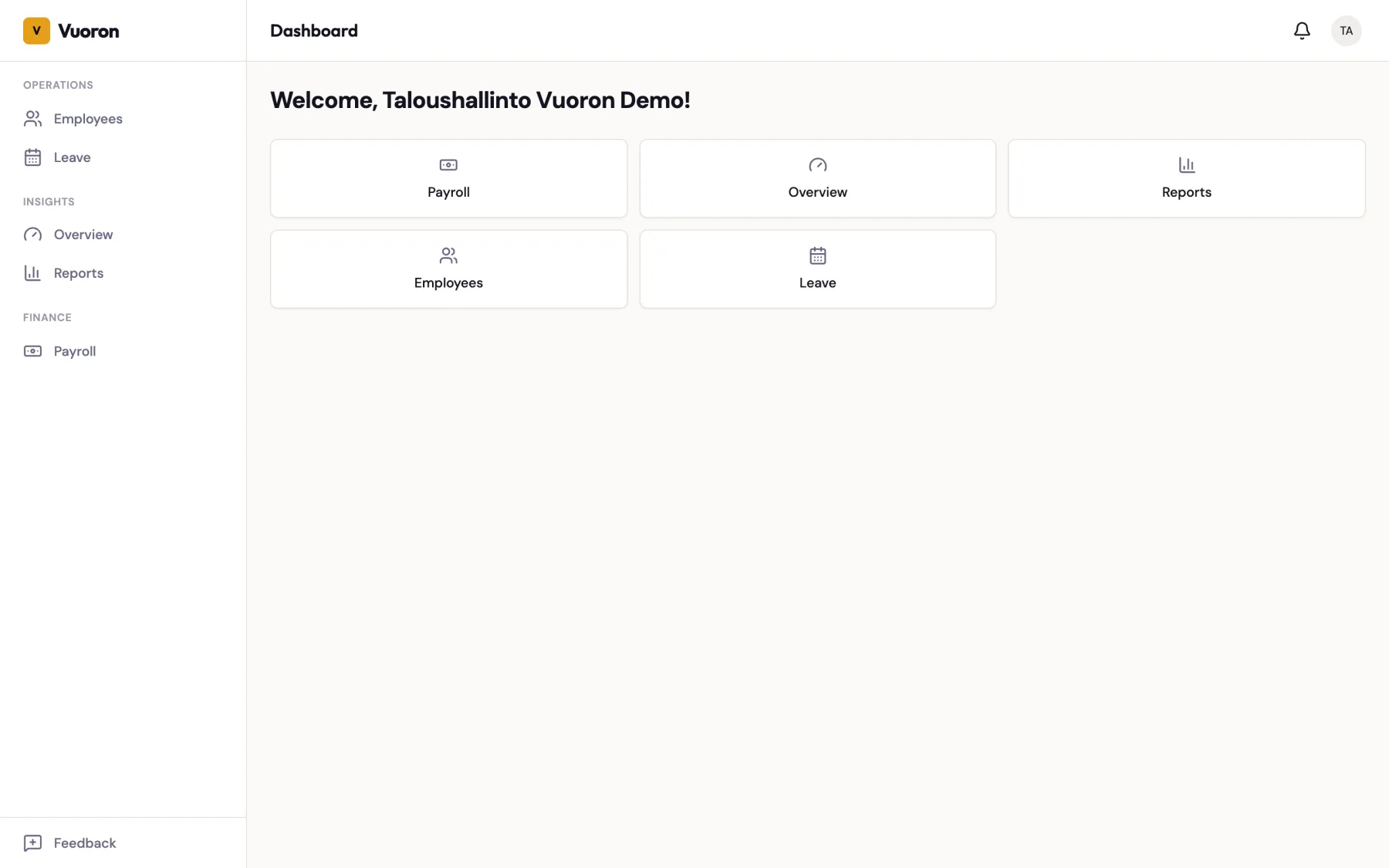
Accounting users usually have no employee record and no operational duties, so their dashboard is a grid of shortcuts: Payroll, Overview, Reports, Employees, and Leave. Each opens the tenant-wide, read-focused view of that section.
Redirects and navigation
There is no role-specific landing page — every authenticated user is sent to / after login. If you land on a page you do not have access to (for example, an Employee following a bookmarked link to the payroll screen), Vuoro silently redirects you back to the dashboard.
What's next
- Organization Setup — configure your companies, locations, and departments. Company Admin only.
- Adding Employees — invite your team so the dashboard starts filling up with data.