Add Shifts to Your Calendar
You can see your published shifts in the calendar app you already use — Google Calendar, Apple Calendar (iPhone, iPad, Mac) or Outlook — without opening Vuoro. You add a private link to your calendar app once, and it keeps your shifts up to date from then on.
This is optional and off until you turn it on.
Turning It On
- Open My Profile from the menu. (Supervisors and managers find it in the avatar menu.)
- Find the Add your shifts to your calendar card.
- Click Enable calendar link.
Your private link appears in a text box.
Adding the Link to Your Calendar App
Google Calendar: click Add to Google Calendar. Google Calendar opens and asks you to confirm adding the calendar.
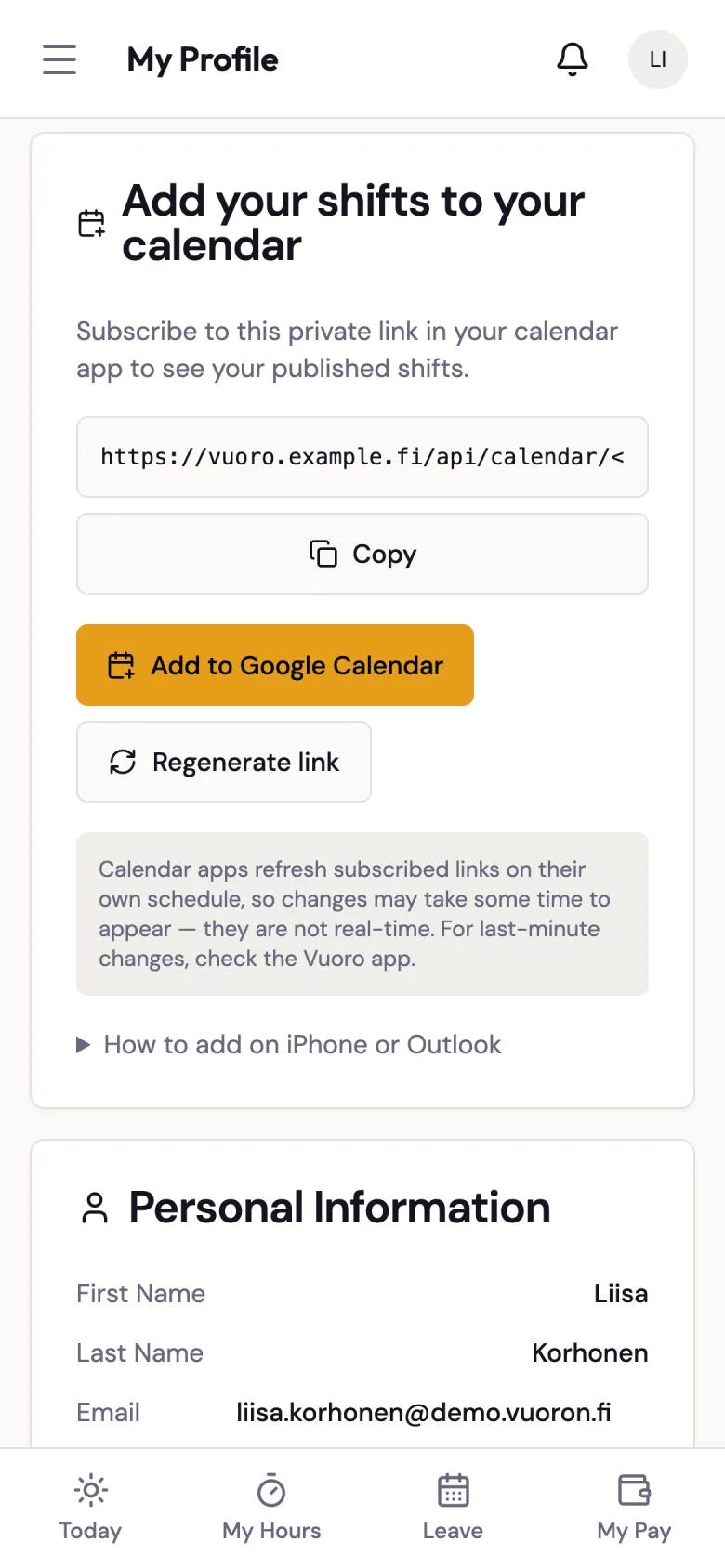
iPhone / Apple Calendar: click Copy, then open Settings → Calendar → Accounts → Add Account → Other → Add Subscribed Calendar, and paste the link.
Outlook: click Copy, then in Outlook go to Calendar → Add calendar → Subscribe from web, and paste the link.
The same instructions are in the app under How to add on iPhone or Outlook.
What Shows Up
- Your own published shifts, from the last 90 days onwards. Draft shifts are never included.
- Each event is titled with the location (and department, if set), e.g. "Pääpuisto – Rides". The event details include your manager's shift note and the break length ("Tauko: 30 min"), if any. Times are in Finnish time.
- If a manager changes a shift, the event is updated. If a shift is cancelled, it is removed from your calendar.
Colleagues' shifts, open shifts and pay information are never included.
:::caution Not real-time Calendar apps refresh subscribed calendars on their own schedule — often every few hours, and Google Calendar can take up to a day. A change made in Vuoro may take a while to reach your calendar. For last-minute changes, always check the Vuoro app. :::
Keeping the Link Private
Anyone who has your link can see your shifts, so don't share it. If you think someone else has it, or you want to stop the feed on an old phone:
- Click Regenerate link.
- Confirm with Regenerate.
Your old link stops working immediately. Add the new link again in every calendar app where you use it.