Viewing Your Schedule
How to view your upcoming shifts, see who else is working, and understand the messages on your schedule.
Your Schedule
Open Today from the menu (or the bottom bar on your phone). The Schedule page has two tabs:
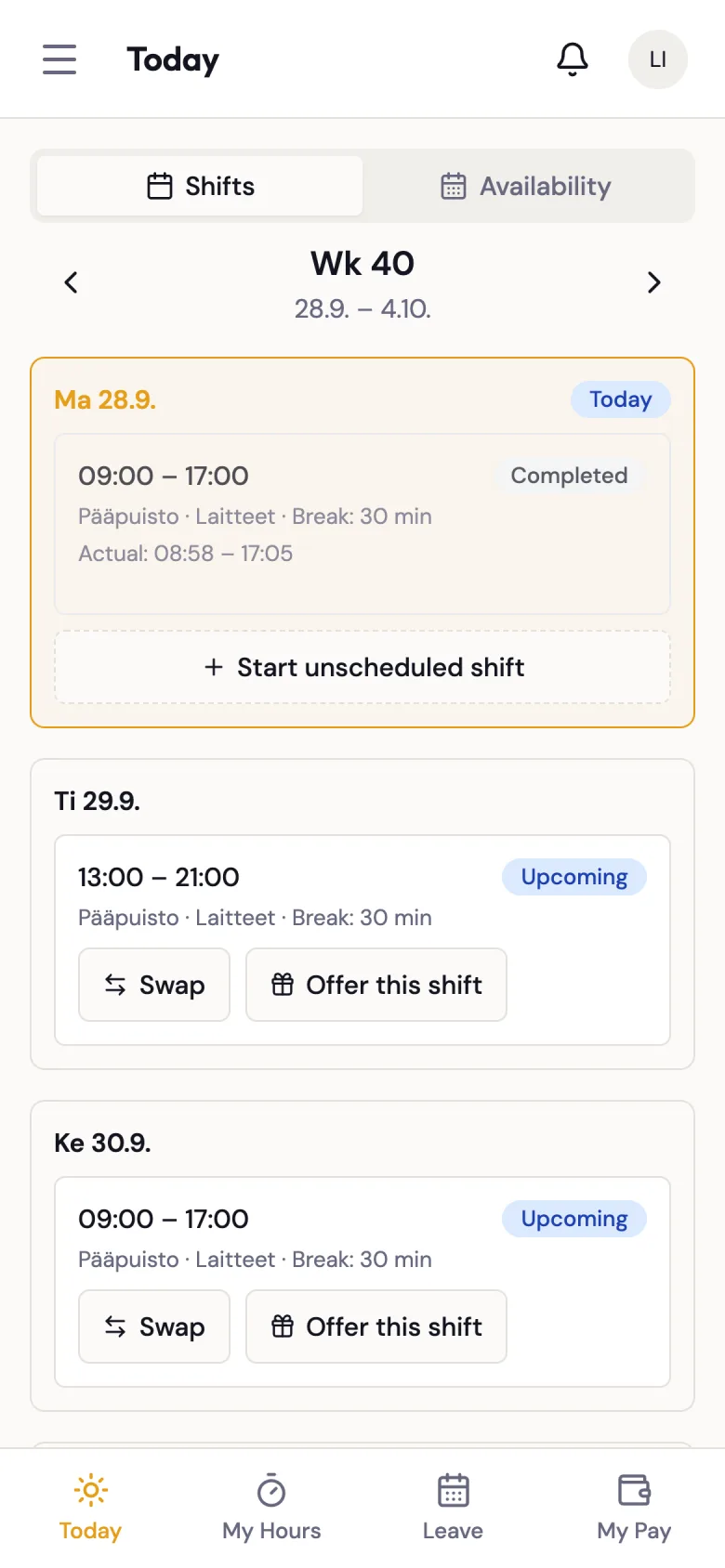
- Shifts — your published shifts for the week, with clock-in/out controls, swaps and offers
- Availability — manage your availability so managers know when you can work (see Managing Your Availability). The same screen is also available as Availability in the menu.
Use the arrows next to the week label (e.g. Wk 23) to move between weeks. Today is marked with a Today badge. Days without work show Free.
You only ever see published shifts. While your manager is still drafting the roster, those shifts are hidden from you.
What a Shift Card Shows
Each shift shows:
- the start and end time, and a status badge: Upcoming, In Progress, or Completed;
- the location, department and break length (e.g. "Break: 30 min");
- your manager's note for the shift, if they left one — notes are only shown to you on your own shifts, never to colleagues;
- for completed shifts, your Actual clocked times.
Depending on the shift, the card also has buttons:
| Button | What it does |
|---|---|
| Clock In / Clock Out, Start Break / End Break | Record your working time. See Clock Events. |
| Swap | Propose exchanging this shift with a colleague. See Shift Swaps. |
| Offer this shift | Give the shift away to a colleague. Once posted, the card shows an Offered badge and a Cancel offer button. See Shift Offers. |
If you start work without a scheduled shift, use Start unscheduled shift and pick the location.
Project Gigs
If you have a project gig (fixed-fee work, urakka), it appears on your schedule with its time, location and description. The fee amount isn't shown here — it appears on your payslip in My Pay. Gigs have no clock-in controls.
Other Sections on the Page
Below your week you may see:
- Available from colleagues — shifts colleagues have offered that you can take. See Shift Offers.
- Open Shifts — unassigned shifts at your location that you can Claim.
- Swap Requests — your Incoming and Outgoing swap requests with their status.
Messages About Clock-Ins
Your schedule and home screen can show three kinds of messages about clock-ins:
| Message | What it means | What to do |
|---|---|---|
| You're offline. Clock events are saved and will sync automatically. (amber) | Your phone has no connection. Clock-ins and clock-outs are stored on the device. | Nothing. They are sent once you are back online. |
| Syncing... (blue) | Stored clock events are being sent to the server. | Nothing. |
| Some clock events couldn't be saved (N) (red) | The server rejected one or more of your clock events, e.g. because the punch overlaps another shift. The reason is listed under the heading. The message stays until the problem is fixed and can't be dismissed. | Tap Retry. If it keeps failing, contact your supervisor so they can record your hours on the timesheet. |
Don't ignore the red message. A clock event that couldn't be saved is not on your timesheet, so the hours won't be paid until it is fixed.
Team Schedule
Open Team schedule from the menu to see who is working with you. The page is read-only.
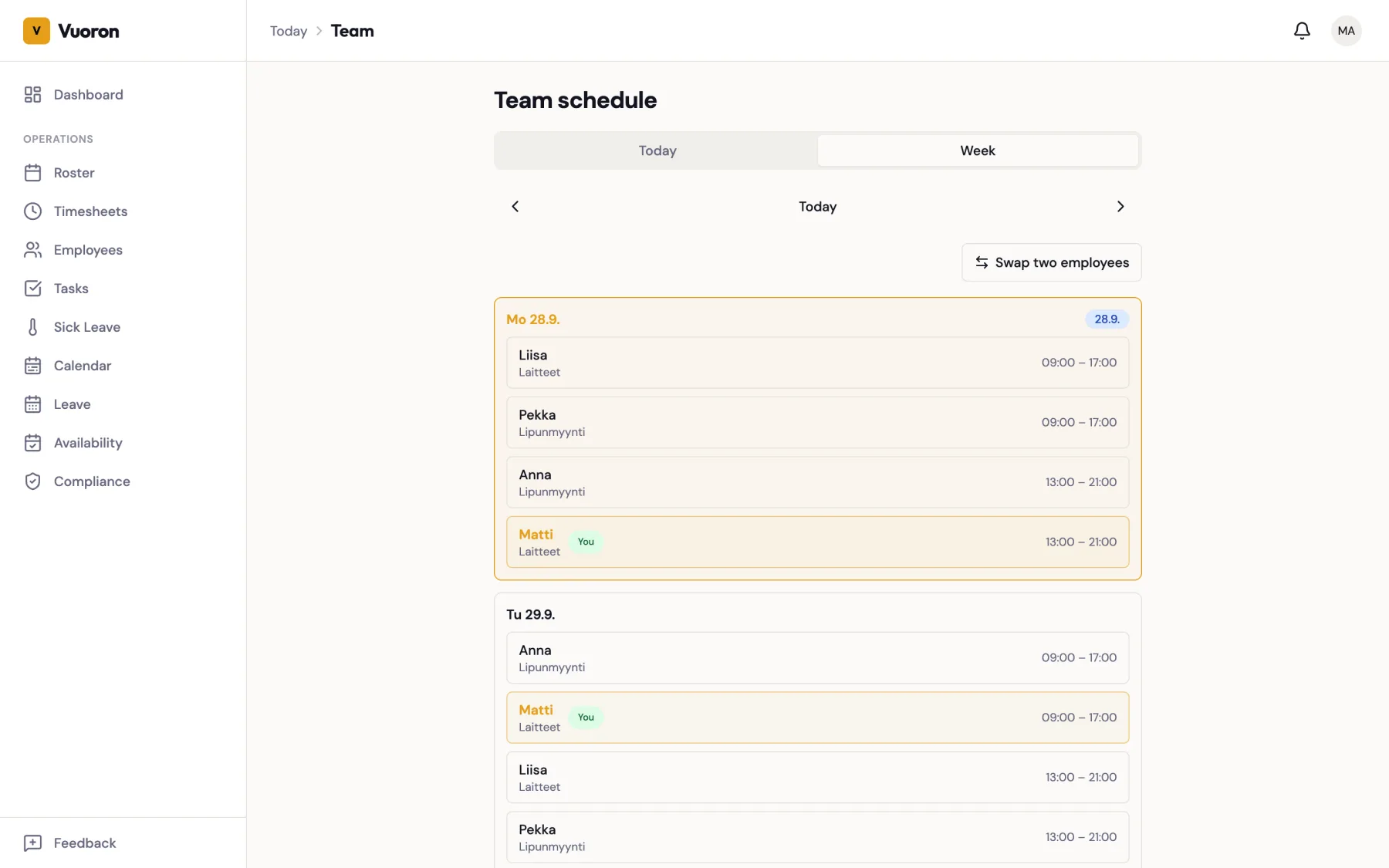
- Today shows today's shifts; Week shows the whole week, one card per day. Use the arrows to move between days or weeks.
- Each shift shows the colleague's first name, their department, and the time. Open shifts are shown as Open with a dashed border, and cancelled shifts are struck through.
- Your own shifts are highlighted and marked You.
- An Offered badge means the colleague has offered that shift. To take it, go back to your schedule's Available from colleagues section.
- If you work at more than one location, a location filter appears and each day is split by location.
If you haven't been assigned to a location yet, the page says "You're not assigned to any location yet." Ask a supervisor to add you.
:::tip For supervisors Supervisors, Managers and Company Admins also see a Swap two employees button on the Week tab. See Supervisor-Brokered Swaps. :::
Shifts in Your Own Calendar App
You can have your published shifts appear automatically in Google Calendar, Apple Calendar or Outlook. See Add Shifts to Your Calendar.
Shift Notifications
When your shifts change, you get a notification. The first time you open the schedule you may be asked "Get notified when your shifts change?". Tap Enable to get push notifications on this device. See Notifications.