Running Payroll
Payroll calculates compensation for a period based on approved timesheets. The process follows a locked workflow to ensure accuracy and prevent unintended changes during calculation.
Payroll periods are per company: each company in your organization has its own sequence of periods. Employees who work for several companies can be paid entirely by one of them — see Multi-Company Employees.
Period Types
Vuoro supports two period lengths, matching the Finnish Amusement Park TES working time models:
| Period Type | Length | Typical Use |
|---|---|---|
| 2-week | 14 days | Standard working time model |
| 3-week | 21 days | Extended equalization model |
The Payroll Page
The Payroll page lists each company's periods, newest first, in two tabs:
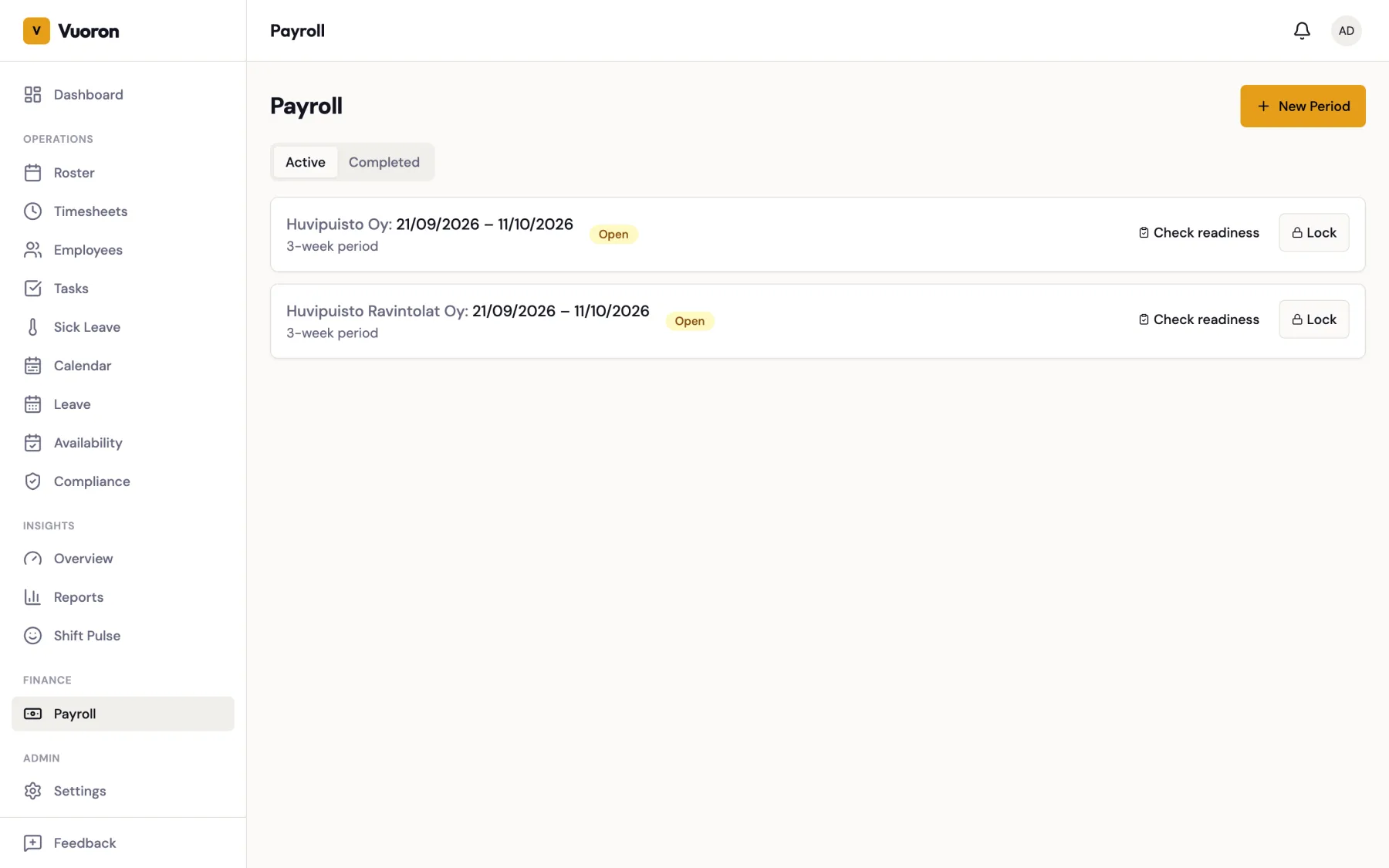
- Active — periods that are Open, Locked, or Calculated (still being worked on).
- Completed — periods that are Approved or Exported.
Click a period to open its detail page (summary, exports, run history, and per-employee results).
If a roster window has been locked but no payroll period covers its dates yet, it appears under Locked rosters without payroll period with a Create period button, so you can create the matching period in one click.
:::info Accounting users Users with the Accounting role see a read-only list of periods. From a period's detail page they can run, approve, reject, export, and mark the period exported — but they don't create, lock, or unlock periods. :::
Who Does What
| Step | Roles |
|---|---|
| Create, lock, and unlock a period | Manager, Company Admin |
| Run payroll | Accounting, Company Admin |
| Approve or reject the results | Accounting, Company Admin |
| Download export files | Manager, Accounting, Company Admin |
| Mark the period exported | Accounting, Company Admin |
| Revoke a completed export | Company Admin only |
Managers can open a period's detail page, review the results, and download the export files, but the run, approval, and mark-exported controls are hidden from them.
Workflow
Follow these steps to run payroll for a period:
- Create a payroll period — Click New Period, pick the company, start date, and period type. The end date is calculated automatically (14 or 21 days). When you lock a period, Vuoro also creates the next period for that company automatically, so after the first one you rarely need to create periods by hand.
- Check that timesheets are approved — On an open period, click Check readiness to see, per employee, their hours and how many worklogs are still Draft or Approved. Approve the remaining drafts from Timesheets.
- Lock the period — Click Lock. Locking freezes the period's worklogs so the data used for calculation is final (see Locking a Period below).
- Run payroll — Click Run Payroll. The system processes all locked worklogs and calculates pay components including base pay, overtime, allowances, and premiums. The period becomes Calculated. You can run it again while it is Calculated; each run replaces the previous results and is listed under Run History.
- Review results — Check the Summary card and the per-employee Results, and address any warnings before proceeding.
- Approve the period — Click Approve (optionally with a comment). This confirms the results are correct and ready for export.
- Export — Download the files you need from the Exports card and import them into your payroll system. See Netvisor Export.
- Mark exported — Once the files have been imported, click Mark exported. An exported period can no longer be modified (unless a Company Admin revokes the export).
Locking a Period
Lock only succeeds when every worklog in the period is approved. If any worklog is still Draft, the lock is refused and you're told how many worklogs and employees are blocking it — approve them first.
- Discarded worklogs are ignored. Worklogs marked as discarded ("this didn't happen" rows — used for clock-in mistakes and the like) don't block the lock, and the period summary hides them.
- Unrecorded work check. Once everything is approved, Vuoro looks for scheduled shifts that have no worklog and sick-leave periods that produced no worklog — hours that would silently drop out of payroll. If any are found, the Unrecorded work in this period dialog lists them. These are often unrecorded sick days or no-shows. Choose Review first to go and fix them (for example from the absent rows on the Timesheets page), or Lock anyway if they are correct as they are. Locking anyway is recorded in the audit log.
- Open clock-ins. A worklog whose employee never clocked out has no end time and is not counted in payroll. Supervisors are warned about these automatically — see Forgotten clock-outs.
Locked periods block retroactive shift reassignments
A locked or exported period also blocks every flow that would change who works a shift inside it:
- Swap auto-approve at acceptance — blocked.
- Supervisor approve on a swap — blocked. There is no role-level bypass.
- Offer claim — blocked.
In every case the swap or offer stays in its current status and the shift is unchanged. The app shows a message such as "Payroll period 2026-04-01–2026-04-21 is locked — this action is not possible. Ask an administrator to unlock the period."
If you genuinely need to reassign a shift inside a locked period (rare — usually a payroll-correction case), unlock the period, perform the reassignment, then lock it again. Unlocking is recorded in the audit log.
Period Status Flow
Payroll periods move through these statuses:
Forward:   Open --lock--> Locked --run--> Calculated --approve--> Approved --mark exported--> Exported

Backward:  Locked / Calculated --unlock--> Open
           Calculated / Approved --reject--> Locked
           Exported --revoke export--> Approved
- Open — Timesheets can still be edited and approved.
- Locked — No further timesheet changes allowed. Ready for calculation.
- Calculated — Payroll has been run. Results are available for review.
- Approved — Results confirmed. Ready for export.
- Exported — The period has been marked exported and can no longer be changed.
Periods can move backward when corrections are needed:
- Locked or Calculated → Open — Unlock (Manager or Company Admin). The period's worklogs return from Locked to Approved so timesheets can be corrected. Existing results are replaced on the next run.
- Calculated or Approved → Locked — Reject (Accounting or Company Admin), with a required reason. The calculated results must be re-run. The most recent rejection is shown on the period until it is approved again.
- Exported → Approved — Revoke export (Company Admin only, see Revoking an Exported Period).
An Approved period can't be unlocked directly — reject it first.
Reviewing Results
The period detail page shows:
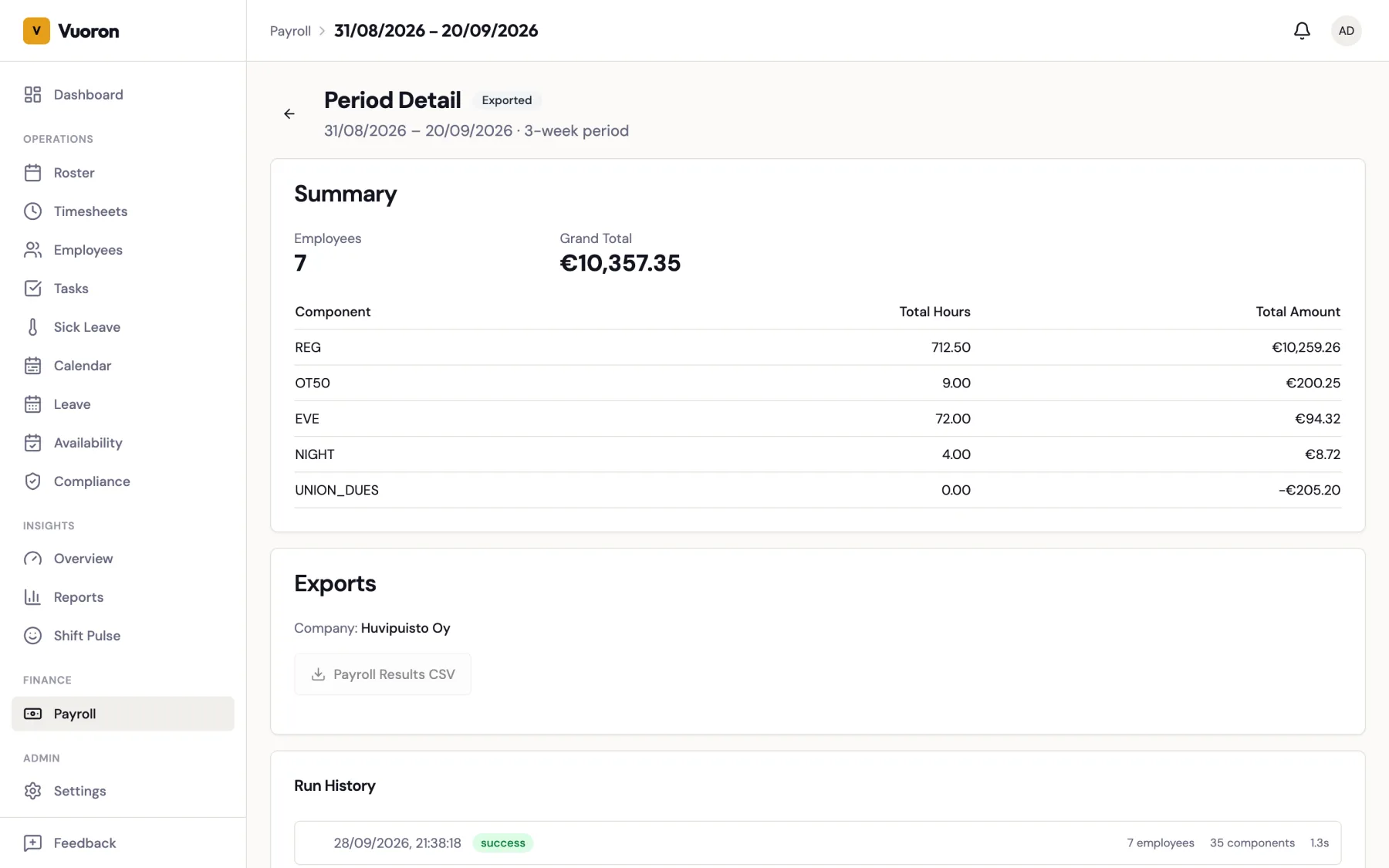
- Summary — the number of employees, the grand total, and totals per pay component. Custom allowances and project gigs are itemized by name, with the number of times each was paid — for example
Tuurauskorvaus ×3— so you can check allowances at a glance. - Results — one row per employee with their total. Expand a row to see each pay line (component, hours, rate, amount). Click a line to open Component Detail, which traces it back to its source shift: date, planned and actual times, location, department, and where the rate came from.
- Run History — every calculation run for the period.
- Project gigs — Managers and Company Admins can add fixed-fee project gigs to an open period (see Project Fees).
Which hourly rate is used
Each employee's hourly rate comes from the active wage table for their pay group and experience level. Experience (TES §3) is counted in qualifying months — a calendar month with at least 10 working days or 75 working hours — and the rate for a pay month uses the experience accrued before that month. A new tier takes effect from the following month, never mid-month.
- Timesheet corrections to an already-closed month (for example adding a forgotten 10th working day) re-evaluate that month automatically, so the employee reaches the correct tier without manual work.
- Sick-leave days count toward experience only up to 75 working days per holiday year (1 April – 31 March). Sick days beyond that are still paid, but don't accrue experience.
Warnings
During calculation, the system may flag the following warnings:
| Warning | Meaning |
|---|---|
| Missing hourly rate | An employee has no resolved pay rate for the period. |
| Pay type conversion recommended | An hourly, full-time employee has been employed continuously for 6 months or more and is eligible for conversion to monthly pay (TES §4.2). |
| Approaching annual overtime limit | The employee has used 90% or more of the 250-hour annual cap. |
| Annual overtime limit exceeded | The employee has exceeded the 250-hour legal overtime limit. |
Address all warnings before approving the period.
Making Corrections
Results look wrong, but timesheets are right (for example after changing a wage table or an employee's settings):
- If the period is Approved, Reject it (back to Locked).
- Run Payroll again.
- Review and Approve.
Timesheets need to change:
- If the period is Approved, Reject it first.
- Unlock the period (back to Open).
- Correct the timesheets and approve them again.
- Lock the period again.
- Run Payroll, review, and Approve.
:::tip Employees paid by another company For an employee whose payroll company is set, recalculate on the paying company's period with Reject → Run Payroll → Approve. Don't use Unlock just to recalculate — unlocking puts the worklogs back to Approved and the period back to Open, so nothing can be calculated until the period is locked again. :::
Revoking an Exported Period
Once a period has been marked exported, it can be returned to the Approved state if a correction is needed after export — for example, a reporting error discovered downstream.
:::caution Company Admin only Revoking an export is a Company Admin-only action. Managers and Accounting cannot perform it. The operation is logged to the audit trail. :::
When to use
- The exported file was rejected by the payroll system and needs to be regenerated.
- A downstream reconciliation turned up an error that requires reopening the period.
- The wrong period was marked exported.
What it does
- Moves the period back from Exported to Approved.
- Moves the period's worklogs from Exported back to Locked.
- Leaves calculation results in place — the revoke itself does not reopen timesheets. To correct the underlying data, reject the approval and follow Making Corrections.
- Does not notify your payroll provider — coordinate with them before revoking.
How to revoke
- On the Payroll page, find the exported period (in the Completed tab).
- Click Revoke export.
- Enter a reason (required, visible in the audit log).
- Confirm.
Employee Self-Service
Employees can view their own payroll results for locked and exported periods through the My Pay section in their dashboard. This includes a breakdown of hours worked, overtime, allowances, and total compensation for each period.
See also
- Multi-Company Employees — paying an employee who works for several companies from one company.
- Netvisor Export — the export files and how to use them.
- Reports — payroll summary, hours/overtime, attendance, and other reports you can generate from the same data.