Day Timeline
The Day Timeline is a read-only "who's working when" view for a single location on a single day. It's designed for opening supervisors, floor leads, and wall-mounted operations displays — one glance and you know who's on, when their shift starts and ends, and which department they're staffing.
Accessing the Timeline
There are three ways to get to the timeline:
- From the Roster page: click the Timeline tab next to Window list, then pick a location with the location selector. If you only have access to one location, it is selected automatically.
- From the Roster window detail page: click the Today at <location> button in the toolbar. This jumps straight to today's timeline for that window's location.
- By URL: navigate to
/<locale>/roster/timeline?locationId=<id>&date=<YYYY-MM-DD>. Thedateparameter defaults to today if omitted.
Access is restricted to Supervisor, Manager, and Company Admin roles. Supervisors and Managers can only pick the locations they are assigned to.
What the Timeline Shows
- A horizontal time axis spanning 06:00–22:00 by default. If any shift falls outside that window on the displayed date, the axis expands to the nearest hour to cover it.
- One row per employee who has a shift on the displayed date — employees with no shifts do not appear.
- Rows are grouped by department, with alphabetical department ordering. Shifts with no department go into an Unassigned group that renders last.
- Within a department, employees are sorted by their earliest shift start, so the morning openers appear at the top.
- Each shift renders as a bar labelled with the start/end time and the employee's name (e.g.
08:00–16:00 Matti V.). Hover over a bar to see the full label.
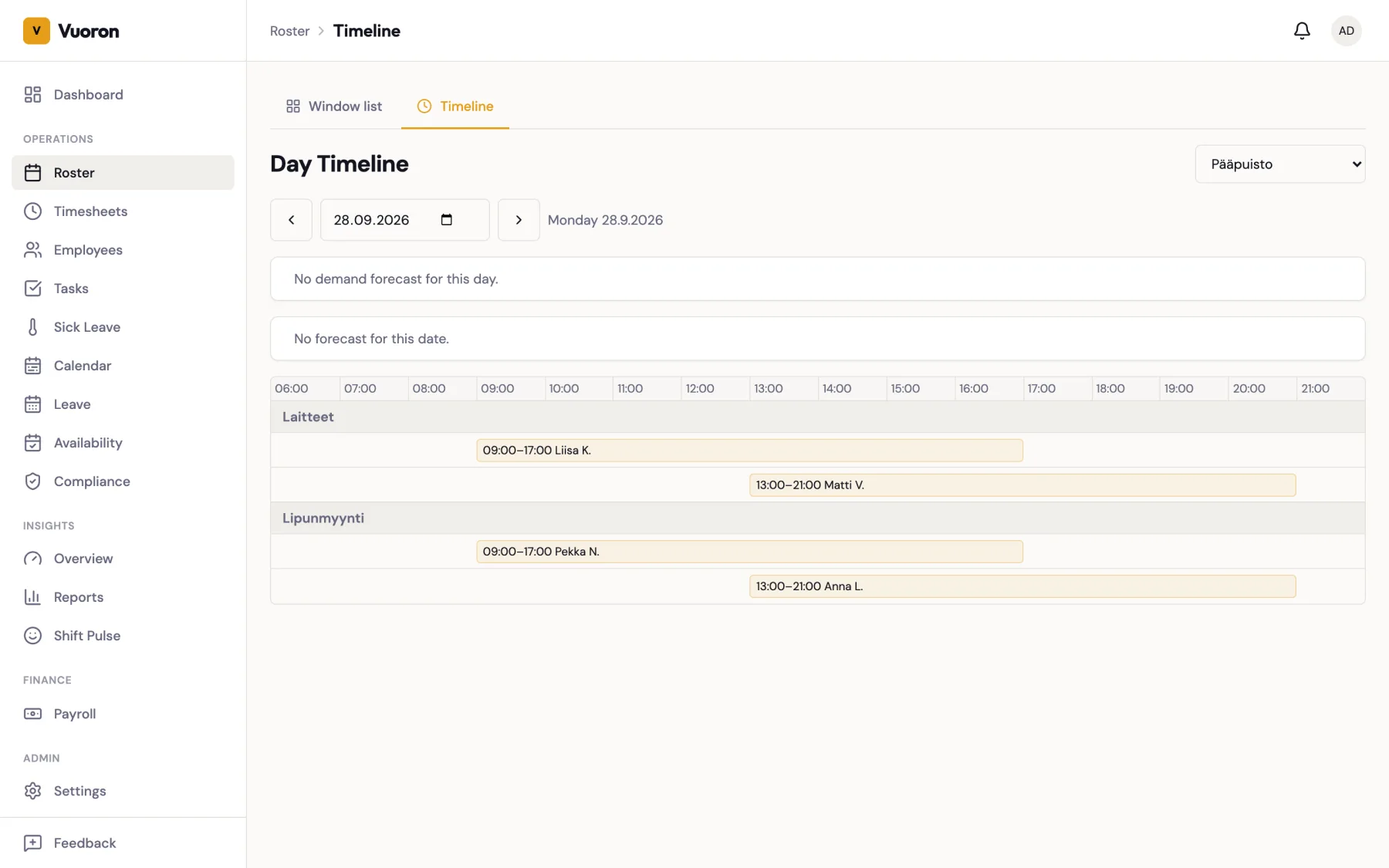
The view is read-only. Clicking a bar does nothing in v1 — to edit a shift, open the roster window for that week.
Coverage and Cost Overlay
When the location has a demand forecast and staffing rules set up, a coverage overlay above the bars compares scheduled headcount with the target through the day, and shows the day's staff cost as a share of forecast sales. See Coverage Targets and Labour-Cost Ratio.
Navigating Days
The page header has a date picker, plus prev-day and next-day buttons. Changing the date updates the URL so you can share a specific day's timeline.
Known Limitations
- A shift that started the previous day and ends today (e.g. a 22:00 → 02:00 closing shift) will not appear on today's timeline in v1. It shows up on yesterday's timeline, clamped at midnight with a continuation chevron.
- The timeline does not show actual clock-in/out status — only planned shift times. For actual-vs-planned comparisons, use the Timesheets view.