Shift Swaps
Employees can swap shifts with colleagues. Swaps are bilateral exchanges (A's shift ↔ B's shift). For unilateral handoffs — where you simply give your shift away — see Shift Offers.
Supervisors and above can also swap two employees' shifts directly, without either employee starting the request — see Supervisor-Brokered Swaps.
Swap Workflow
The employee-initiated swap process is up to four stages, but the supervisor step usually doesn't fire:
- Employee A requests a swap. They select one of their own shifts and the target shift they want to swap with.
- Employee B accepts or rejects. The target employee reviews the proposed swap and decides whether to accept.
- Compliance is checked at the moment of acceptance. The system simulates both employees in their post-swap shifts and runs the full compliance suite. If compliance passes, the swap auto-approves immediately and both shifts are reassigned. No supervisor click is required on the happy path.
- Supervisor reviews — only when compliance flags a violation. When the auto-approve check fails, the swap stays at "Accepted" and a notification goes to managers with the violation list. The supervisor can override and approve the swap manually if appropriate.
Swap Statuses
| Status | Shown as | Description |
|---|---|---|
| Pending | Awaiting response | Employee A has requested the swap. Waiting for Employee B to respond. |
| Accepted | Awaiting supervisor | Employee B has agreed but compliance flagged a violation, so the swap is parked for supervisor review. |
| Approved | Approved | Auto-approved at acceptance (clean compliance), approved by a supervisor override, or brokered by a supervisor. Shifts have been swapped. |
| Rejected | Rejected | Either Employee B or the supervisor rejected the swap. |
| Cancelled | Cancelled | Employee A withdrew the request, or the swap was auto-cancelled because a shift changed. |
The happy path goes Pending → Approved in a single Accept click. The Accepted status only appears when compliance fails and a supervisor needs to review.
Supervisor-Brokered Swaps
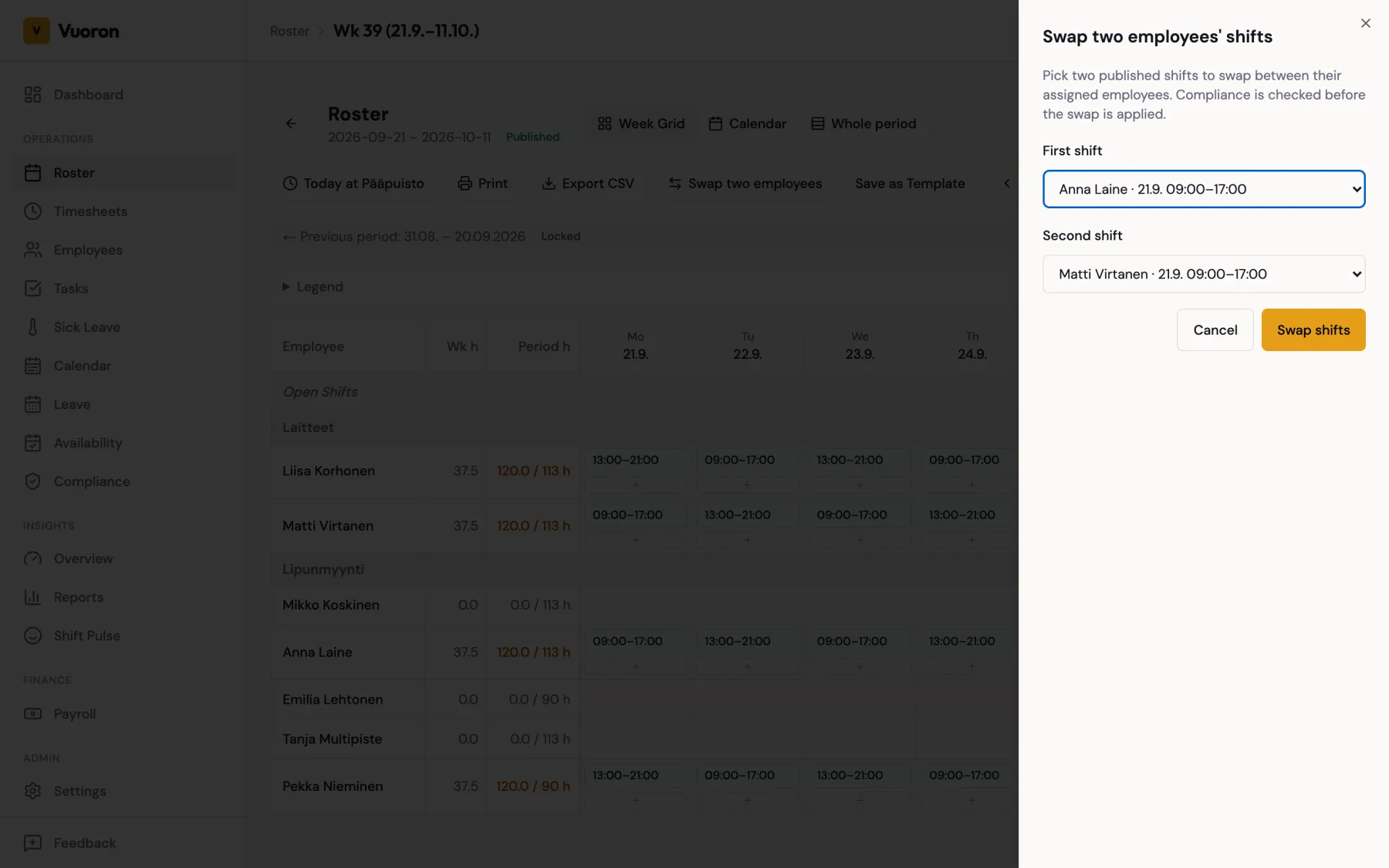
Sometimes two employees agree a swap in person, or a supervisor needs to rearrange staff after the roster is published. Drag-and-drop only works on draft rosters, so on a published roster use Swap two employees instead. The action is available to Supervisors, Managers, and Company Admins in two places:
- the roster window toolbar (
/roster/<window>), when the window is Published; - the Week tab of the Team schedule page.
To broker a swap:
- Click Swap two employees. The Swap two employees' shifts panel opens.
- Pick the First shift and the Second shift. Each list shows the published, assigned shifts as "Employee · date start–end".
- Click Swap shifts.
The two shifts must belong to different employees ("Pick two shifts that belong to different employees.") and be at the same location ("Both shifts must be at the same location."). Both shifts must be in locations you have access to.
Because you are the one authorising the swap, there is no accept or approve step. The system runs the same compliance check as a normal swap approval, then:
- If compliance passes, both shifts are reassigned immediately, the grid refreshes, and both employees receive a "swap approved" notification. The swap is recorded as Approved in the Shift Swaps list with you as the approver, and in the audit log.
- If compliance flags anything (overlap, rest period, overtime, etc.), nothing changes. The panel shows "This swap would cause compliance violations and was not applied:" followed by the list of violations.
Unlike the review of an Accepted swap, a brokered swap cannot override compliance warnings. If you really need to force a reassignment that breaks a rule, edit each shift individually in the shift drawer, where you can Save anyway past warnings (overlaps are still never allowed).
Reviewing Swap Requests
Open Shift Swaps from the navigation. Most days you'll see only the swap history — clean swaps no longer pause for review. Use the Accepted status tab to see the swaps that need a supervisor decision (compliance was flagged).
- Click the Accepted tab.
- Review each swap's two shifts, both employees, and the violation list that blocked auto-approve. Swaps you are not part of are labelled Between others.
- Click Approve (override) or Reject.
Compliance Checks
When Employee B clicks Accept, the system simulates both employees with their swapped shifts and checks for violations:
- Shift overlap — if the post-swap assignment would put either employee at two places at once, the swap fails immediately with an error and stays in Pending. Overlap can never be overridden by anyone, so the system tells the requester straight away instead of wasting a manager review.
- Rest period requirements between shifts
- Overtime limits for the equalization period
- Other TES compliance rules
If no violations are found, the swap auto-approves and both shifts are reassigned in a single step. If a non-overlap violation is detected, the swap is held at Accepted status and a notification with the violation list is sent to managers — they can either override and approve manually, or reject.
Locked Payroll Periods Block Reassignment
When a payroll period is Locked or Exported, the system refuses to perform any swap reassignment whose shift falls in that period — the period is the official record sent to payroll, and reassigning hours after lock would corrupt the books. The block applies to:
- Swap auto-approve at acceptance time
- Supervisor override approve
- Supervisor-brokered swaps
In each case the user sees an error naming the locked period's date range, and nothing changes. There is no role-level override; the only path forward is to unlock the period via the normal payroll workflow first.
Cascading Cancellation on Shift Mutations
If you cancel a shift, delete a draft, or change a shift's planned start, planned end, location, or assigned employee, every non-terminal swap that points at it is automatically cancelled. Both involved employees receive a "Swap auto-cancelled — the shift changed" notification and the swap row carries the note Auto-cancelled — the shift changed.
The cascade happens together with the shift change, so a half-updated state is never visible. Edits to non-schedule fields (notes, training flag, etc.) do not trigger the cascade.
The Shift Swaps Page
The Shift Swaps page has two top-level tabs:
- Shift Swaps (default) — bilateral exchanges, filterable by All / Pending / Accepted / Approved / Rejected. Scoped to the caller's role: employees see their own; supervisors and managers see swaps at their assigned locations; Company Admin and Accounting see every location.
- Active offers — open shift offers (the unilateral handoff flow). Same role-scoping rules.
The Active offers tab can be deep-linked via ?view=offers, which is what the "shift offer received" notification does so a recipient lands directly on the claim list.
Rejecting a Swap
Supervisors can reject a swap at either the Pending or Accepted stage. Both employees are notified of the rejection.
Notifications
Employees receive notifications at each stage of the swap process:
- Employee B is notified when a swap is requested.
- Both employees are notified when the swap is approved — auto-approved at acceptance, manually approved by a supervisor, or brokered by a supervisor.
- When compliance fails, managers receive a "swap pending approval" notification with the violation list.
- Both employees are notified when the supervisor rejects.