Staff Calendar
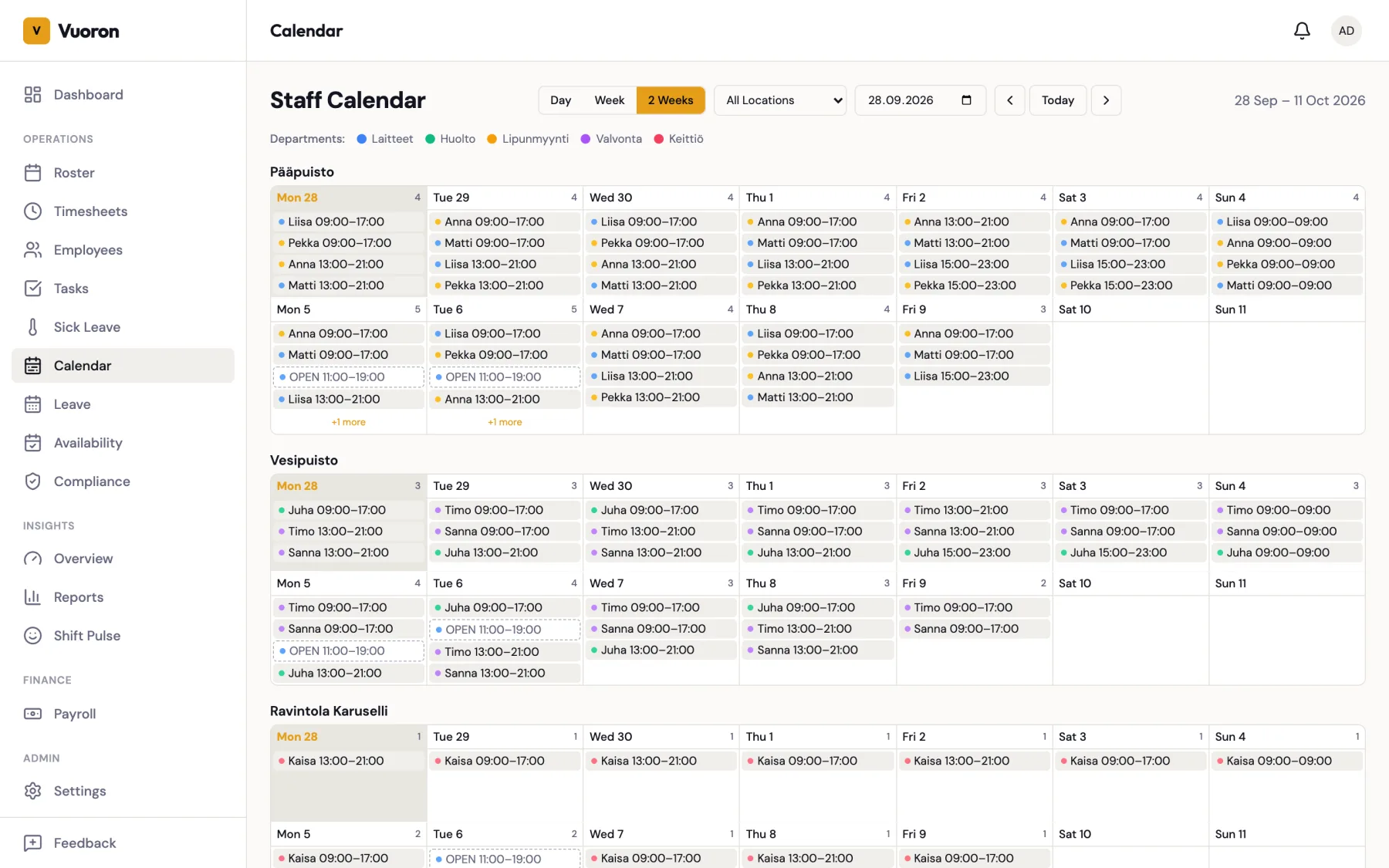
The staff calendar gives supervisors and managers a bird's-eye view of all shifts across employees for a location.
Accessing the Calendar
Navigate to Calendar from the main menu (under Operations). The calendar is available to supervisors and above. The page is titled Staff Calendar.
View Modes
The calendar offers three view modes to match different planning needs:
| View | Shows | Best for |
|---|---|---|
| Day | Hourly timeline for a single day | Checking real-time coverage and overlap |
| Week | 7-day grid | Standard weekly planning |
| 2 Weeks (default) | 14-day grid | Reviewing roster transitions and longer patterns |
Switch between views using the toggle at the top of the calendar.
Navigation
- Use the Previous and Next buttons to move between dates.
- Click Today to jump back to the current date.
Features
- Location filter: Select the location you want to view, or All Locations. Supervisors and Managers only see the locations they are assigned to.
- Department color-coding: Shifts are color-coded by department. A legend at the bottom of the calendar shows which color corresponds to which department.
- Assigned and open shifts: Both assigned shifts (with employee names) and open shifts (marked as unassigned) appear on the calendar.
- Cancelled shifts excluded: Cancelled shifts are not shown, keeping the view clean.
Common Use Cases
- Spotting coverage gaps: Quickly see time slots where no one is scheduled.
- Checking staffing levels: View how many employees are working at any given time.
- Identifying conflicts: Visually catch overlapping shifts or back-to-back shifts with insufficient rest.
- Planning ahead: Use the 2 Weeks view to review upcoming roster transitions and ensure smooth handoffs between periods.