Organization Settings
Configure your organization's structure — companies, locations, and departments. This forms the foundation for rostering, time tracking, and payroll.
:::info See also Looking for the Pulse view from the app nav? See Shift Pulse — the post-shift sentiment dashboard. :::
The Settings Menu
Settings (Managers and Company Admins) is split into groups:
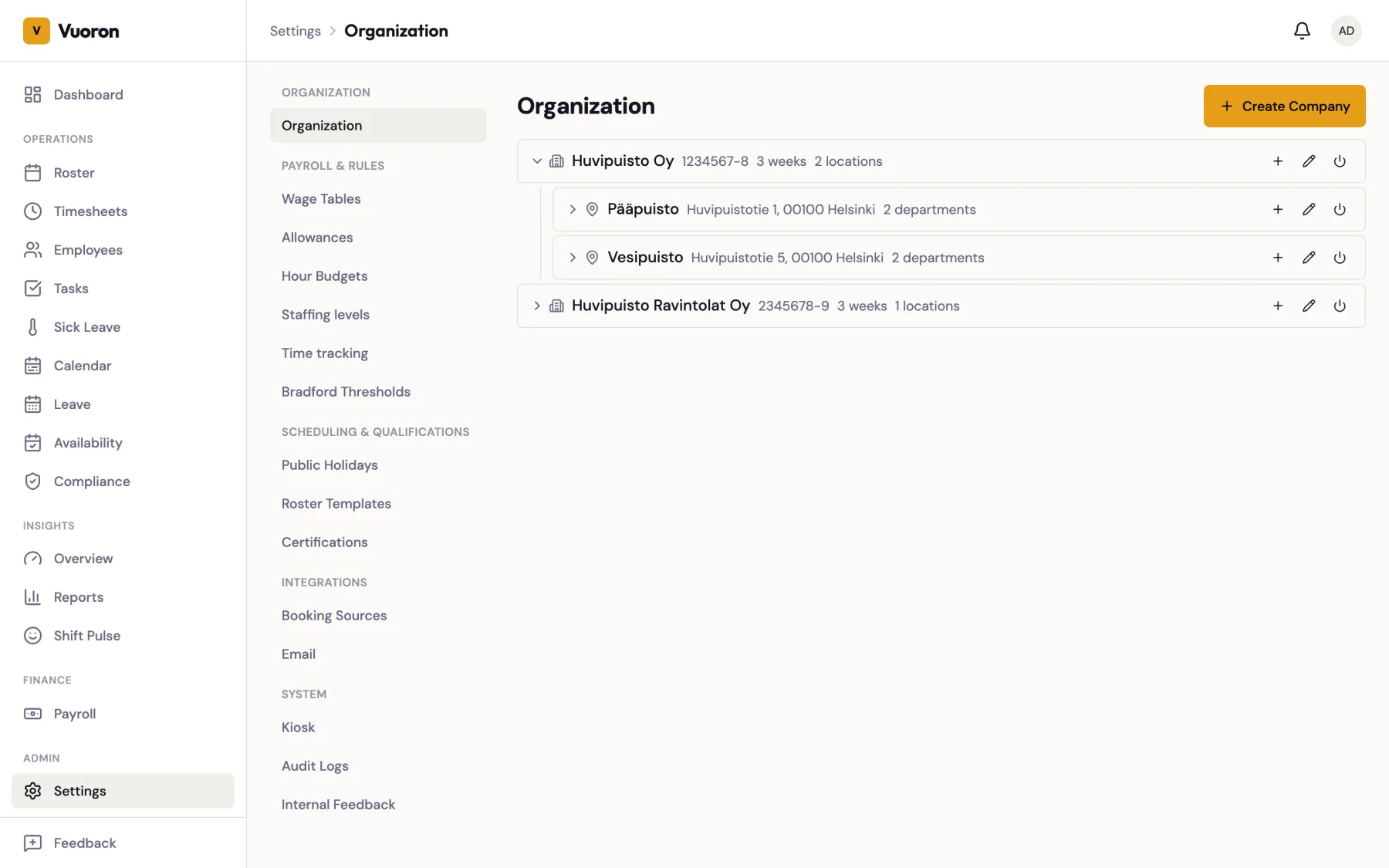
| Group | Sections |
|---|---|
| Organization | Organization |
| Payroll & rules | Wage Tables, Allowances, Hour Budgets, Staffing levels, Time tracking (Company Admin), Bradford Thresholds |
| Scheduling & qualifications | Public Holidays, Roster Templates, Certifications |
| Integrations | Booking Sources (Company Admin), Email |
| System | Kiosk, Audit Logs, Internal Feedback (Company Admin) |
On a phone, Settings opens as a list of these sections; on a larger screen they appear as a menu on the left.
Organization Hierarchy
Your organization is structured in three levels:
| Level | Description |
|---|---|
| Company | Top level. Maps to a legal entity with a business ID. |
| Location | A physical work site under a company. |
| Department | A team or area within a location. |
Every employee, shift, and payroll record is tied to this hierarchy.
Managing Companies
Creating, editing, and deactivating companies requires Company Admin. Managers can manage locations and departments.
- Navigate to Settings > Organization.
- Click Create Company.
- Fill in the required fields:
| Field | Required | Description |
|---|---|---|
| Company Name | Yes | The company's display name. |
| Business ID | No | Finnish Y-tunnus (e.g., 1234567-8). |
| Netvisor ID | No | Used for payroll export to Netvisor. |
| Roster Period | Yes | Choose 2-week or 3-week roster periods. |
| Netvisor Kirjauslajit (workday import) | No | Four codes — Regular work, AP leave, Vacation, Sickness — used by the Netvisor workday CSV export. Enter all four or leave every field empty. See Netvisor Export. |
- Click Save.
To edit a company, click on it in the list and update any fields. Changes take effect immediately.
Managing Locations
- Select a company from the organization view.
- Click Add Location.
- Fill in the fields:
| Field | Required | Description |
|---|---|---|
| Name | Yes | The location's display name (e.g., "Main Park", "Water Park"). |
| Address | No | Street address of the work site. |
| Timezone | No | Defaults to Europe/Helsinki. |
- Click Save.
Each location can have its own kiosk terminal for on-site clock-in and clock-out — see Kiosk.
Locations are also the unit of access control: Supervisors and Managers only see the locations they are assigned to through their employee record (see User Roles & Access).
Managing Departments
- Select a location from the organization view.
- Click Add Department.
- Enter the department Name (required).
- Click Save.
Departments are used for:
- Shift assignment and filtering
- Calendar color-coding on the roster view
- Reporting breakdowns in payroll and timesheets
Deactivation
Companies, locations, and departments can be deactivated rather than deleted.
- Deactivated entities are hidden from dropdowns and selection lists.
- All historical data (shifts, worklogs, payroll records) is preserved.
- You can reactivate an entity at any time if needed.
To deactivate, open the entity and click Deactivate.