User Roles & Access
User accounts and employee records are managed together from the Employees page. This page covers the role system and how access works.
There is no separate Users page. All user management — invitations (including logins for people who are not employees), role changes, and access control — lives on the Employees page. Old bookmarks to /users redirect to Employees.
User Roles
There are five roles. The first four (Employee → Supervisor → Manager → Company Admin) form a strict hierarchy: each inherits everything from the role below. Accounting sits off to the side — it has its own specialized access focused on payroll, independent of the Supervisor/Manager track.
| Role | What they can do |
|---|---|
| Employee | View their own schedule and shifts, clock in/out, request leave, swap shifts with colleagues, view their own pay (My Pay), submit app feedback. |
| Supervisor | All Employee permissions, plus: view and create employees, create and edit shifts, build draft rosters, approve/reject timesheets and leave requests, manage tasks and announcements, view the staff calendar and compliance warnings. Location-scoped — see below. Cannot publish rosters — that requires Manager. |
| Manager | A Location Manager: all Supervisor permissions, plus: publish roster windows, lock roster windows, create and edit wage tables, manage custom allowances, public holidays, organization settings, locations/departments, compliance screens, budgets, pulse (Shift Pulse), audit logs, view per-employee experience data, view and export payroll, and invite employees — all restricted to their assigned location(s) (see below). Cannot trigger a payroll run (a run recomputes the whole company at once) — that is Company Admin / Accounting. |
| Company Admin | A tenant-wide administrator. All Manager permissions across every location, plus the actions that affect billing, compliance, access, or bulk state: invite and manage users without an employee record (including deactivating them), run payroll, revoke an exported payroll period, run the bulk experience recomputation, import employees via CSV, configure Bradford thresholds, configure booking sources (webhooks), and manage the admin feedback inbox. |
| Accounting | A tenant-wide payroll specialist with no general management access, usually without an employee record (invite them with Invite user — see below). Can: run payroll, approve, reject, and mark exported payroll periods, download payroll CSVs and perform Netvisor export operations, view the employee list and employee pay details (read-only), view leave requests (read-only), and open Overview, Reports (including the certifications report) across all locations. Cannot manage shifts, rosters, employees, leave approvals, wage tables, audit logs, or settings. |
Location scoping — who sees which locations
Two roles are tenant-wide (they see and act across every location in the tenant): Company Admin and Accounting.
Three roles are location-scoped — they only see and act on the location(s) their own employee record is assigned to (via employee assignments on the Employees page):
- Supervisor and Manager see only rosters, shifts, employees, worklogs, leave requests, sick-leave, tasks, reports, and payroll for their assigned locations. Data at other locations is hidden (a direct link to an out-of-scope roster, shift, or employee returns "not found").
- Employee sees only their own data.
Accounting users see a short dashboard of links (Payroll, Overview, Reports, Employees, Leave) instead of the operational dashboard, and their sidebar only shows those sections.
A Supervisor or Manager with no location assignments sees nothing — assign them to at least one location on the Employees page. (Managers get their locations exactly the way supervisors and employees do: through employee assignments; there is no separate "manages these locations" setting.)
Payroll is a special case: because a payroll run recomputes the entire company at once (overtime is calculated on each employee's combined hours across all locations), only Company Admin and Accounting can trigger a run. A Manager can view and export payroll, but only for employees assigned to their location(s).
:::info Where does each permission actually come from?
Permissions are enforced in the API by role groups defined in apps/api/src/modules/auth/auth.constants.ts:
SUPERVISOR_AND_ABOVE→ Supervisor, Manager, Company AdminMANAGEMENT_ROLES→ Manager, Company AdminADMIN_ROLES→ Company Admin onlyACCOUNTING_ROLES→ Accounting, Company AdminPAYROLL_ROLES→ Manager, Company Admin, Accounting (read access; Manager is location-scoped in-service)PAYROLL_RUN_ROLES→ Company Admin, Accounting (triggering a payroll run/recompute — Manager excluded)EMPLOYEES_LIST_ROLES→ Supervisor, Manager, Company Admin, Accounting
Role groups gate whether a role may call an endpoint. Location scoping is a separate, additional layer applied inside services via UserScopeService (Supervisor and Manager resolve to their assigned locations; Company Admin and Accounting are tenant-wide). So a Manager passes the PAYROLL_ROLES gate but only sees payroll for their own locations.
Individual API endpoints declare which group they require with @Roles(...). If a reality here disagrees with this article, the code is authoritative — please file a docs fix.
:::
How Employees Get App Access
When you create an employee, an invitation email is automatically sent to their email address. The employee clicks the link to set their password and create their login account. The system automatically links the user account to the employee record.
Access Status
The employee list shows an Access column indicating each person's app access status:
| Status | Meaning |
|---|---|
| Active | The employee has a user account and can log in. |
| Invited | An invitation has been sent but not yet accepted. |
| No access | No invitation has been sent and no user account exists. |
| Disabled | The employee has been archived and cannot log in. |
| Unlinked account | A login with the employee's email exists, but it is not connected to this employee record (for example, it was created before the employee record, or with different capitalisation of the email). The person can log in but the app cannot find their shifts or pay. Use Link Account from the actions menu to fix it. |
Changing a User's Role
Managers and company admins can change a user's role directly from the employee list:
- Navigate to Employees.
- Click the actions menu (⋮) on the employee's row.
- Select Change Role.
- Choose the new role from the dropdown.
- Click Change role to confirm.
After a role change, the user is logged out and must log in again to receive updated permissions. Promoting someone to Admin (Company Admin) shows an extra warning, because it grants tenant-wide administrator access.
Change Role also works for a pending invitation: it changes the role the invitation will grant when it is accepted. The action is disabled (with an explanation on hover) when the employee has neither a login nor a pending invitation — send an invitation first — or when the account is unlinked — link it first.
Who can assign which role
The API enforces a hierarchy when assigning roles. A user can assign any role at or below their own level:
Employee (0) < Accounting (1) < Supervisor (2) < Manager (3) < Company Admin (4)
| Your role | Roles you can assign |
|---|---|
| Employee | Employee |
| Accounting | Employee, Accounting |
| Supervisor | Employee, Accounting, Supervisor |
| Manager | Employee, Accounting, Supervisor, Manager — but not Company Admin |
| Company Admin | Any role, including Company Admin |
In practice, only Managers and Company Admins see the employee actions menu, so they are the only ones who open the Change Role dialog. Supervisor and Accounting rows are shown here for completeness.
- You cannot change your own role — even if the hierarchy would permit it. This is a separate safeguard on top of the hierarchy check.
- When a role changes, the affected user's refresh tokens are invalidated, forcing re-login with the new permissions.
Sending Invitations
If an employee doesn't have app access yet, you can send an invitation manually:
- Click the actions menu (⋮) on the employee's row.
- Select Send Invitation.
- Choose a role for the user.
- Click Send.
The invitation expires after 7 days. If it expires, send a new one using Resend Invitation from the actions menu.
Users Without an Employee Record
Accountants, bookkeepers, and office administrators often need a login but are not employees — they have no start date, wage, or shifts. You don't need to create a fake employee for them. Company Admins manage these logins in the Users without an employee record section at the bottom of the Employees page (Active tab). Managers do not see this section.
Inviting
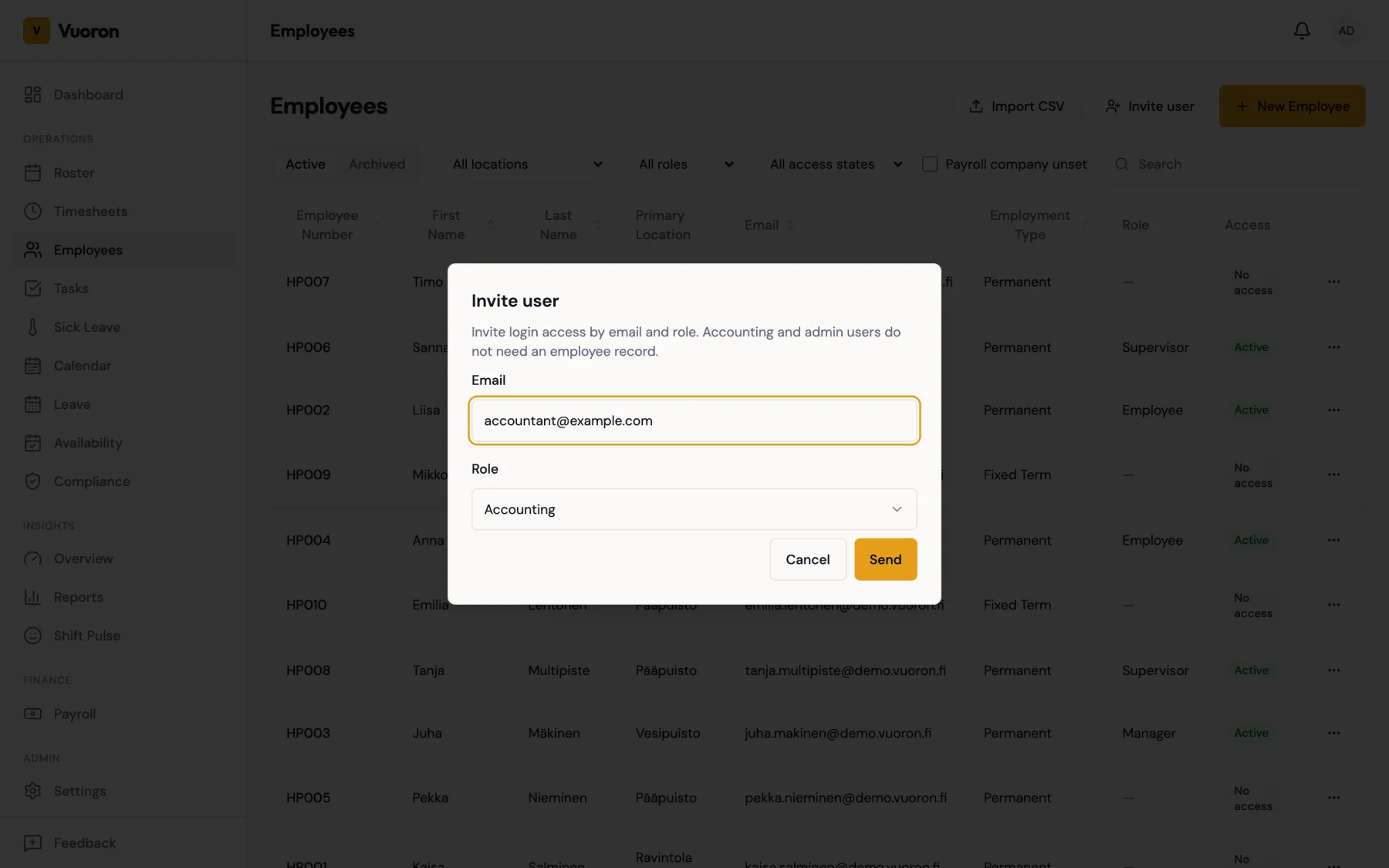
- Navigate to Employees.
- Click Invite user at the top of the page or in the section (Company Admins only).
- Enter the person's Email and choose a Role.
- Click Send.
Only the two tenant-wide roles are offered: Accounting and Admin (Company Admin). Location-scoped roles (Employee, Supervisor, Manager) get their locations from an employee record's assignments, so they must be created as employees with New Employee instead.
If a login with that email already exists, the dialog shows "A user with this email already exists" and stays open so you can correct the address.
The invited person does not appear in the employee list, because they have no employee record. Until they accept, the invitation is listed under Pending invitations in the section, where you can Resend, Change role, or Revoke it.
Managing their access
Each login in the section shows its role, status, and last login. From the actions menu (⋮):
- Change role — switch between Accounting and Admin.
- Send password reset link — emails the person the same reset link as "Forgot password" (valid for one hour). You never see the link or their password. Use this when someone is locked out. Only available for active logins.
- Deactivate — the person is signed out of every device immediately (on their next click, not when their session would have expired) and can no longer log in. Their history and audit trail are kept.
- Reactivate — restores a deactivated login. Old sessions stay ended; the person logs in again with their existing password (or uses "Forgot password").
Safeguards: you cannot deactivate yourself, someone ranked above you, or the last active Company Admin. Your own row has no actions. Deactivations, reactivations and password-reset sends are recorded in the audit log.
:::tip When someone leaves Deactivate an accountant's login the day they leave. For employees, archive the employee instead — that disables their login the same way, and they must be restored as an employee before their login can be reactivated. :::
Linking an Unlinked Account
If an employee's Access column shows Unlinked account, a login exists for their email but is not connected to their employee record. Open the actions menu (⋮) and choose Link Account. The login is connected to the employee and any existing sessions for that login are signed out, so the person signs in again and sees their own shifts, hours, and pay.
Important Notes
- Each user must have a unique email address. Email addresses are not case-sensitive —
Anna.K@example.comandanna.k@example.comare the same login. - After accepting an invitation, the user sets their own name and password.
- Archiving an employee automatically disables their user account, effective immediately (see Managing Employees).
- Disabled users cannot log in but their historical data (shifts, worklogs, payroll) is preserved.
Source of truth — The role definitions and assignment hierarchy in this article are enforced in code. When roles or their capabilities change, the authoritative files are:
packages/shared/src/types/enums.ts— theUserRoleenumapps/api/src/modules/auth/auth.constants.ts— role groups (MANAGEMENT_ROLES,ADMIN_ROLES,ACCOUNTING_ROLES,SUPERVISOR_AND_ABOVE,PAYROLL_ROLES,EMPLOYEES_LIST_ROLES)apps/api/src/modules/auth/role-escalation.ts— the numeric hierarchy, theassertCanAssignRolecheck (new role ≤ yours), and theassertCanActOnUsercheck (target's current role ≤ yours)
Per-endpoint role requirements live on each controller as @Roles(...) decorators under apps/api/src/modules/.