Timesheets
Overview
Timesheets aggregate clock events into worklogs for review and approval. They bridge time tracking and payroll, giving supervisors a clear picture of hours worked before payroll is finalized. The Timesheets page is available to Supervisors, Managers, and Company Admins; supervisors and managers see the locations they are assigned to.
Use the toggle at the top to switch between two views:
- All Worklogs — every worklog (and absent shift) in the date range, one row each.
- By Employee — one row per employee with totals, for approving person by person.
Pick the date range with Start Date / End Date, or jump to a Week or 2 weeks range. You can also filter by location, department, and status, and search for an employee.
All Worklogs View
Each row shows:
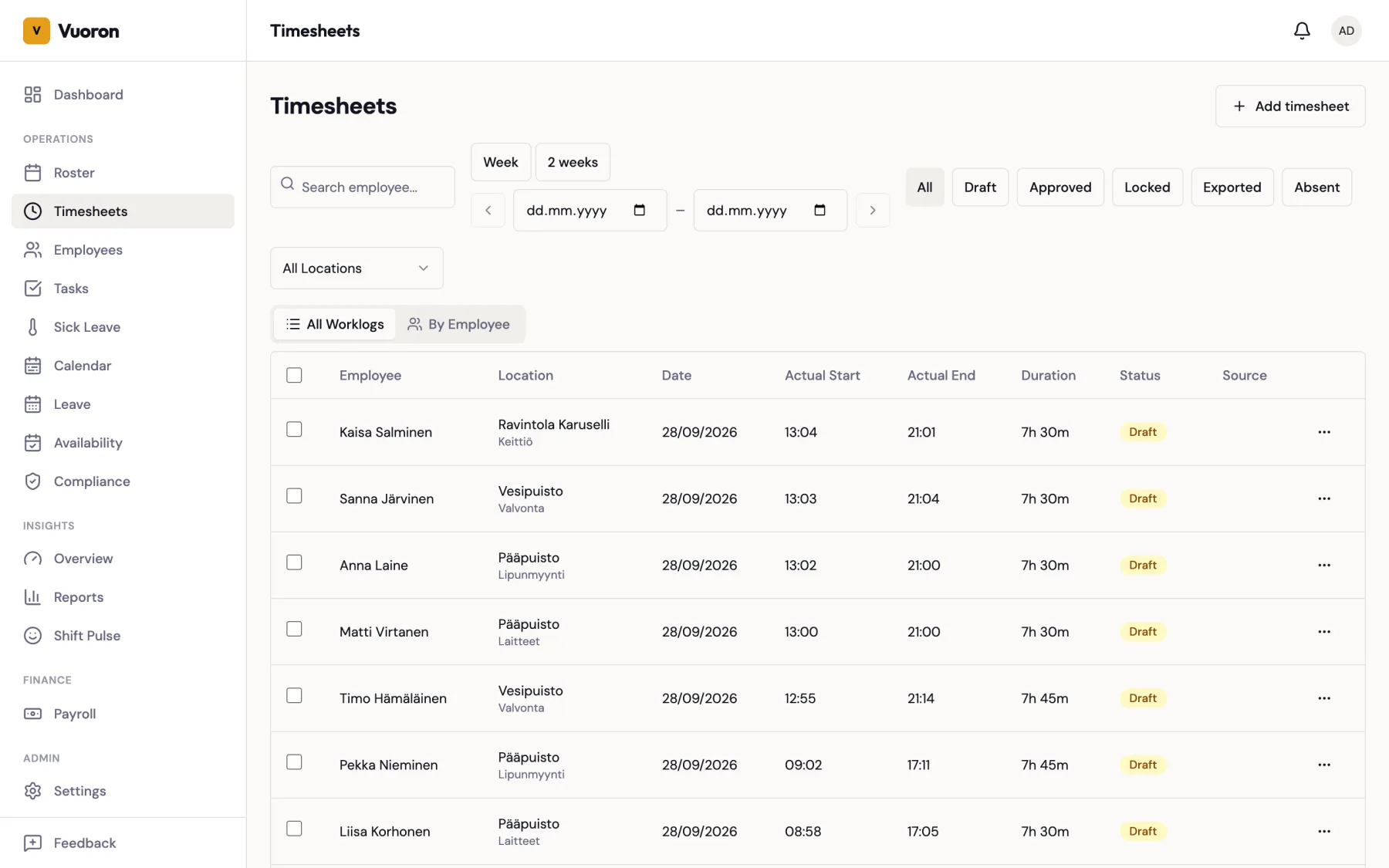
| Field | Description |
|---|---|
| Employee | Who worked |
| Shift comment | The comment written on the planned shift, if any |
| Location / Department | Where the work was done |
| Date | The work date |
| Actual Start / Actual End | Clock-in and clock-out times |
| Duration | Payable time after rounding |
| Source | Clock, Manual, or Sick leave |
| Status | Worklog status (see below), or Absent |
Newest worklogs are listed first. Click a row to open the worklog's detail page — planned shift, breaks, allowances, exceptions, and adjustment history. The back button returns you to the view (and date range) you came from.
By Employee View
The employee view lists, per employee, their Total Hours and how many worklogs are Draft, Approved, and Locked, plus the number of Exceptions. Click an employee to open their own timesheet page, which has:
- Tabs to filter by status — All, Draft, Approved, Locked, Exported.
- Approve all drafts (N) to approve the employee's remaining drafts in one click.
- Start Date / End Date inputs. When you open the page without a range, it shows the last 3 months.
Worklog statuses
A worklog moves through five possible statuses. Most clean clock-event worklogs flow draft → approved → locked → exported on the happy path; supervisors only intervene for the ones that didn't auto-approve.
  ┌─────────┐  approve   ┌──────────┐  period   ┌─────────┐  export    ┌──────────┐
  │  draft  │ ─────────▶ │ approved │ ─────────▶│ locked  │ ─────────▶ │ exported │
  │         │ ◀───────── │          │   lock    │         │ ◀───────── │          │
  └─────────┘   revert   └──────────┘  ◀────    └─────────┘   revoke   └──────────┘
       │       to draft               unlock                  export
       │
       │ discard (with reason)
       ▼
  ┌───────────┐
  │ discarded │  (terminal — audit-only row)
  └───────────┘
| Status | Meaning |
|---|---|
| Draft | Recorded but not yet reviewed. Adjustable by supervisor. |
| Approved | Cleared by either auto-approve or supervisor. Counted in payroll. |
| Locked | The payroll period has been locked; worklog is frozen for processing. |
| Exported | The payroll period has been marked exported. |
| Discarded | Removed from payroll but kept as an audit row. Terminal. |
Automatic approval
When an employee clocks out, the system attempts to auto-approve their worklog. The worklog moves directly from Draft to Approved without supervisor review when all of the following are true:
- The worklog has a linked planned shift (no unscheduled work).
- The actual start time is within ±5 minutes of the planned start.
- The actual end time is within ±5 minutes of the planned end.
- No exceptions were detected for the worklog.
Otherwise the worklog stays in Draft and waits for the supervisor to approve it manually (see Approval Workflow below).
Manual worklogs always require supervisor approval. When a worklog is entered by hand, the system records a manual entry exception on it, which prevents auto-approval regardless of how cleanly the times line up.
Approval Workflow
Worklogs that didn't auto-approve stay in Draft. To clear them:
- Filter to the date range (and status Draft) you want to review.
- Resolve any exceptions — adjust times or breaks as needed.
- Select the worklogs and click Approve Selected (or use Approve all drafts on an employee's page).
- The status changes from Draft to Approved.
- If corrections are needed later, select the worklogs and click Revert to draft.
Ready for Payroll
An employee's timesheets are ready to lock for payroll when all of the following conditions are met:
- No draft worklogs remain for the period.
- No unresolved exceptions that block readiness exist (see Exceptions).
- At least one approved or locked worklog exists for the period.
Check this from the payroll period with Check readiness (see Running Payroll).
Adding Worklogs Manually
Click Add timesheet to record time that wasn't clocked. Pick the employee, location, and department, then enter the date, start time, and end time. Use Add row to enter several entries at once, and click Save timesheet. Manual worklogs start as Draft and need approval.
Correcting a Worklog
Only Draft worklogs can be edited. To correct an approved worklog, Revert to draft first.
Adjust times:
- Open the worklog.
- In the Adjust Times card, change the Actual Start, Actual End, or both.
- Enter a Reason for adjustment (required) and click Save Adjustment.
- The change is recorded in the Adjustment History with before and after values. Approve the worklog again when it's correct.
Other row actions (the ⋯ menu on a worklog row, also available on the detail page):
| Action | What it does |
|---|---|
| Import scheduled hours | For a worklog linked to a shift: replaces the actual times with the shift's planned times, e.g. when an employee forgot to clock in or out. Recorded in the adjustment history. |
| Discard | Removes a Draft worklog from payroll (for example a mistaken clock-in). You give a reason; the worklog is kept as a Discarded audit row. |
Breaks. On the worklog detail page, the Breaks card lists the recorded breaks. You can add, edit, or remove breaks on a Draft worklog. A break can be marked Paid when the employee can't freely leave the workplace (TES §4). Alternatively, tick Eat during work when the employee ate during work instead of taking a separate break; this also clears the missing-break exception.
Allowances. The Allowances card on the detail page lets you attach custom allowances to the worklog — see Allowances & Premiums.
Sick partway through a shift. If an employee clocked in and went home sick, split the shift into worked and sick-leave hours from the roster — see Sick Leave.
Forgotten clock-outs
A worklog without a clock-out has no end time, so its hours don't count toward payroll until it is closed. Supervisors, managers, and company admins are notified automatically when a clock-in has been open for more than 14 hours — see Forgotten Clock-Outs. Open the worklog and set the actual end time to fix it.
Exceptions
Exceptions such as late arrival, early departure, missing break, missing clock-out, and long shift are detected automatically and shown on the worklog. Some of them block payroll readiness until resolved; others are informational. See the full list in Clock Events.
Absent shifts (no-shows)
When a published shift's planned end time has passed and no worklog exists for the same employee covering that interval, the timesheets list surfaces it inline as an Absent row alongside real worklogs. This is the manager's no-show review surface — no more cross-referencing the roster against the worklog list by hand.
An absent row shows the employee, planned date and times, location, and an Absent status badge (distinct colour). Clock-derived fields (rounded duration, breaks, exceptions) are not shown — the row carries no clock data by definition.
Filter the list by Absent in the status filter to see only no-shows, or leave the status filter on all statuses to see absents mixed with worklogs in date order.
Each absent row has three actions in its ⋯ menu:
| Action | What it does |
|---|---|
| Add manual worklog | Opens the manual-worklog dialog pre-filled with the shift's employee, location, department, date, start, and end. Save to create a proper worklog and the absent row disappears. |
| Mark sick leave | Creates an approved sick-leave worklog from the shift's planned hours. Use it when the employee was absent because of illness. |
| Mark shift cancelled | Cancels the shift. Choose a Cancellation category (required) and edit the reason if needed (default: No-show — manager review). The category decides whether the employee is paid shift-cancellation compensation — for a no-show, pick a non-compensated category. The absent row disappears once the shift is cancelled. |
Absent rows are read-only with respect to bulk actions: they're not selectable for Approve / Revert to draft / Discard (they have no worklog), and the select-all checkbox skips them.
A shift is considered absent only when:
- It is published (not draft, not cancelled).
- Its planned end is in the past.
- No Draft, Approved, Locked, or Exported worklog for the same employee overlaps the planned interval. (Discarded worklogs do not count as coverage.)
A manual worklog that overlaps the planned interval clears the absent row even if its times don't exactly match the plan. A different-time manual worklog on the same day (e.g. 12:00–14:00 against a 14:00–22:00 shift) does not clear it.
Absent shifts that are still unresolved when the payroll period is locked are listed in the Unrecorded work in this period check — see Locking a Period.